AI Background Editing for Photos
Upload a permitted photo and describe the background you want to change. Image editing uses credits; inspect the result before using it.
Image credits without a subscription
Buy a one-time pack for image generation and editing. Choose a monthly plan when you also want more chat and other tools.
Introductory offer for eligible accounts
Check a one-time offer of 5 image credits for $3.99 USD. Create an account or sign in to confirm eligibility; no subscription.
Check starter eligibilityIn Image Studio, a credit-funded generation or edit uses 1 image credit. A new version is a separate request.
Review your available image allowance in the studio before starting. Purchased image credits do not expire. Video uses separate credits.
Global USD reference prices. Regional discounts may apply; review your final total and payment terms at checkout.
5 image credits
$5.00 USD · One-time purchase
Review pack13 image credits
$12.35 USD · One-time purchase
Review pack25 image credits
$22.50 USD · One-time purchase
Review pack50 image credits
$42.50 USD · One-time purchase
Review pack
See a real background edit
One internal Image Studio test using our own AI-generated cup. Compare the source with the downloaded result before deciding whether this workflow fits your task. This example replaces the background; it does not demonstrate a transparent cutout.
Source image

Edited result
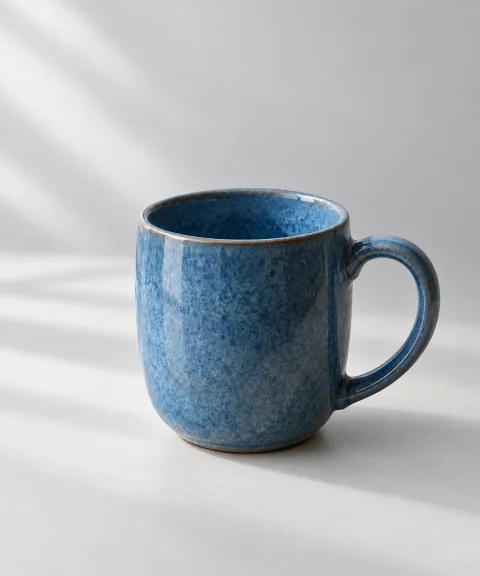
Inspect the edit at a larger size
Move the divider to compare the original file with the actual edited result. Check the background, handle and surface. Full-size downloads remain available above.
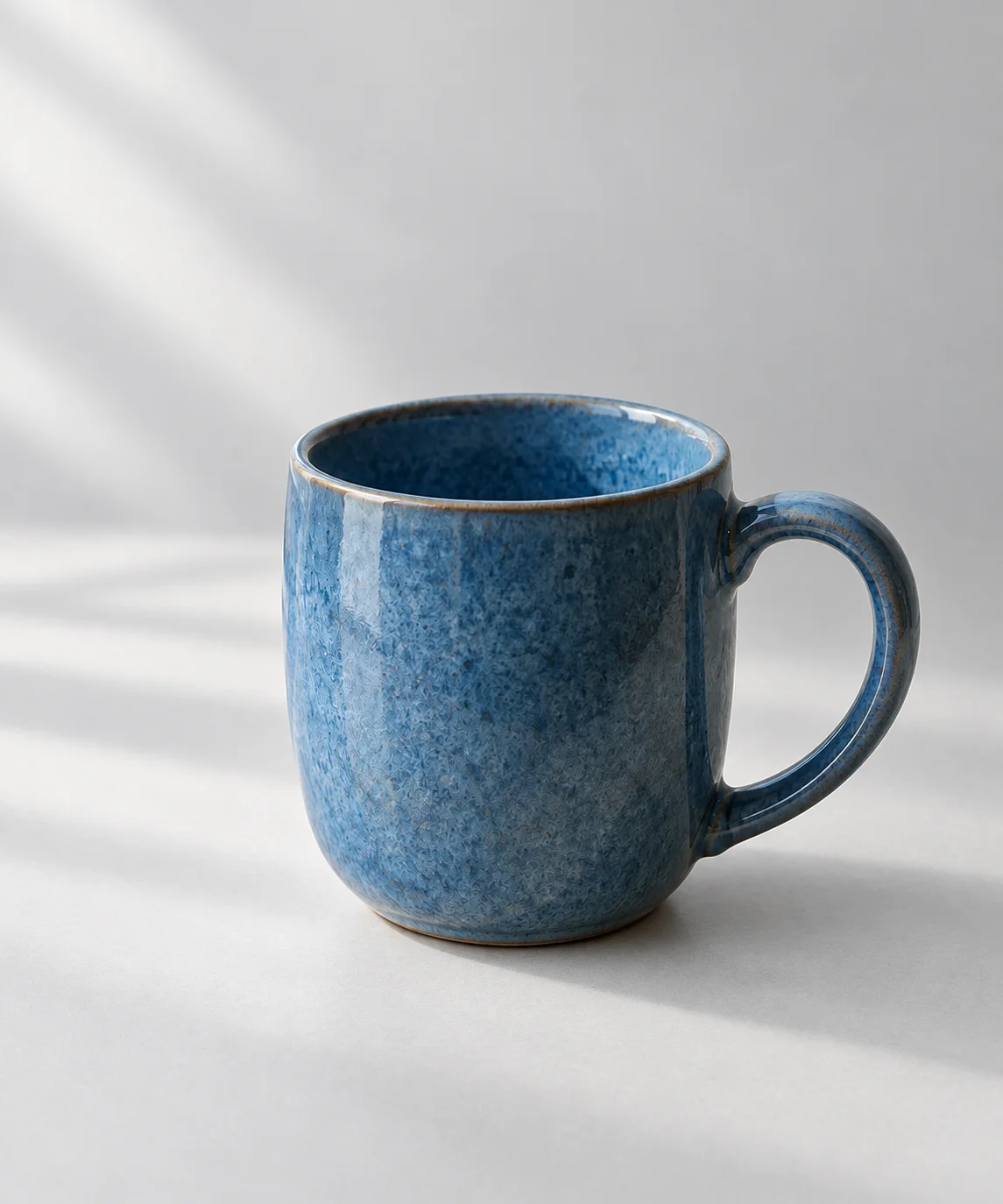



Exact editing instruction
Replace only the background with a pale gray studio backdrop. Preserve the blue ceramic cup, its handle, glaze, shape, position and framing. Keep natural light and a realistic contact shadow. Do not add text, logos or extra objects.What changed, and what still needs review
- The background changed as requested, and the cup remained blue with a comparable composition and handle shape.
- The glaze texture, lighting and highlights also changed. This was not pixel-exact preservation. Compare the full-size files before using an edit to represent a specific product.
Open Image Studio in editing mode
This is one observed result, not a quality benchmark or a guarantee of the same output. Downloading these files and copying the instruction are free. To try the example, upload the source in Image Studio and paste the instruction. Image edits require image credits; review the job cost before submitting. Opening the editor does not start a job.
A starting brief for a product background
Example text to adapt; this is not a generated result.
Starting brief
Using this permitted product photo, replace the busy background with a soft off-white studio backdrop. Keep the item, label and camera angle as close to the original as possible.
Review before use
Compare edges and the product label with the source. If you need a transparent cutout, inspect the actual file or use a dedicated masking tool.
Professional Results
Describe the Change
Ask for a new scene, plain backdrop, or another change to a permitted source photo.
Name What to Keep
Specify the subject and details that should remain, then compare the output with the original.
Inspect Fine Edges
Review hair, fur, fabric and overlapping objects; the result may need a separate manual correction.
Product Photos
Explore a backdrop for a product image, and check that the item remains accurately represented.
Compare Variations
Request a different scene or color and compare it against the source.
Check the File
Inspect the returned format, dimensions and transparency before using it in another design.
Built for Every Workflow
E-Commerce Listings
Explore product backdrops and check the item against the original.
Profile & Team Photos
Consistent headshots on a uniform backdrop for websites and directories.
Marketing & Ads
Explore new scenes for banners, thumbnails, and ad creatives.
Print & Merch
Explore artwork ideas and check the returned file before printing.
Real Estate
Remove clutter or swap skies and backdrops on listing photos.
Design Assets
Build a library of cut-out elements for decks, mockups, and collages.
Simple as 1-2-3
Upload Your Photo
Drag in a JPG or PNG — a portrait, a product shot, or any image with a subject to isolate.
Describe the Background
Explain what should change and which details of the subject should stay.
Review the Result
Compare edges, subject details and file properties with your requirements before downloading.
Frequently Asked Questions
Is background editing free?
Creating an account does not include a free image edit. Image jobs use credits from a one-time pack or eligible plan; check the displayed cost before submitting.
Does it produce a transparent cutout?
Image Studio offers prompt-based editing; a transparent PNG or perfect cutout is not guaranteed. Inspect the file and use a dedicated masking tool when exact transparency is required.
What can I upload?
Use a supported photo you own or have permission to edit. Check the upload control and the returned file's properties for the current workflow.
Can it handle hair and fine detail?
You can ask to preserve fine edges, but they may change. Compare the result with the original and correct details when needed.
Can I use it for product photos?
You can explore background ideas, then check the product, output and marketplace rules before publishing. The image editor does not promise a batch cutout workflow.
Can I replace the background?
You can describe a replacement background in the image editor. Review the whole result because the subject may also change.
Do I need design skills?
You can describe the change in plain language. A manual editor may still be needed for precise edges or transparency.
Is my image kept private?
Uploads are sent to the services used for the requested edit. Read Brainbaby's privacy policy and the applicable provider terms before sharing sensitive material.